
WordPress technical SEO
WordPress Sitemap & Robots.txt Fix: Give Google a Clean Map and Open Doors
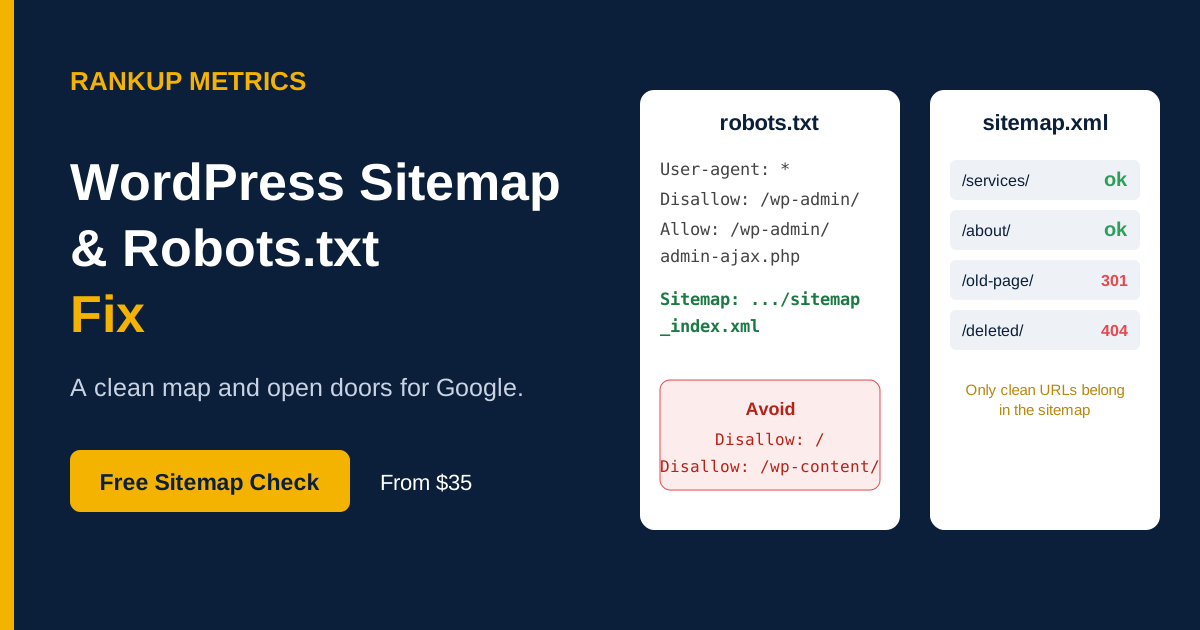
Your sitemap is the list of pages you invite Google to visit. Your robots.txt decides which doors stay open. When the two disagree, Google gets mixed signals. RankUp Metrics audits both files, fixes verified conflicts and resubmits your sitemap.
- From $35
- Both files audited
- Report included
Is this happening to you?
Sitemap couldn’t fetch or robots.txt errors?
The sitemap says “Sitemap could not be read” or shows zero discovered pages
Search Console warns that sitemap URLs are blocked by robots.txt
Important pages show “Submitted URL blocked by robots.txt” or are marked noindex
URLs show “Indexed, though blocked by robots.txt”
Search Console cannot fetch your robots.txt file
Your sitemap lists URLs that redirect, return 404 or are duplicates
www and non-www versions of your domain show different robots.txt rules
WordPress and an SEO plugin both publish separate sitemaps
Not sure which file is the problem? Send us your domain for a free check →
Two files, two jobs
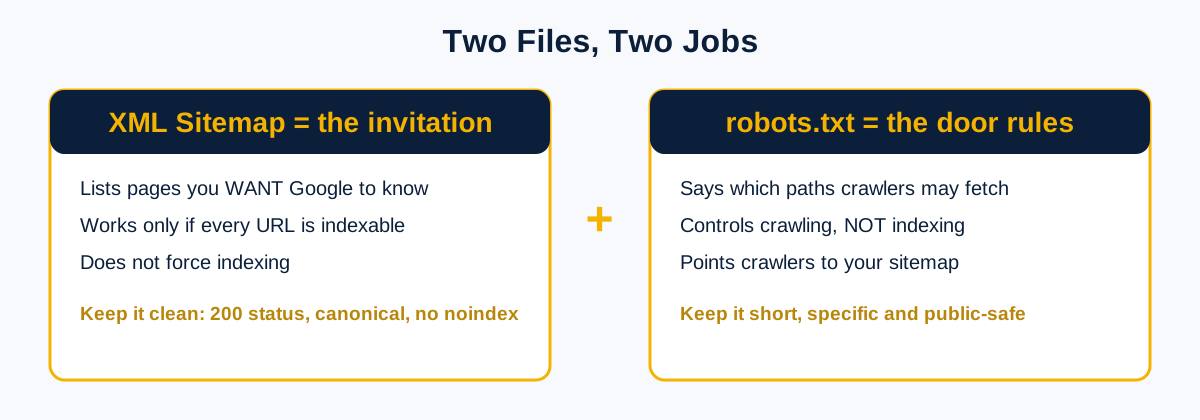
Your sitemap invites. Robots.txt sets crawl rules.
The XML sitemap lists URLs you want Google to know about and, ideally, when they last changed. It does not force indexing; each URL should be worth indexing.
Robots.txt tells crawlers which paths they may fetch and can point them to your sitemap. It controls crawling, not indexing. A URL blocked from crawling can still appear in Google if other pages link to it.
A healthy setup keeps the signals aligned: sitemap URLs are crawlable, indexable and canonical, while robots.txt points to the right sitemap.
3-minute self-test
Check your sitemap and robots.txt
- 1Open yourdomain.com/robots.txt. Confirm it loads, is readable and does not disallow the whole site.
- 2Repeat on the www and non-www versions. Different files can mean Google sees different rules.
- 3Look for a Sitemap line with the full address of your sitemap.
- 4Open that sitemap. WordPress core commonly uses /wp-sitemap.xml; Yoast or Rank Math commonly use /sitemap_index.xml.
- 5Open five sitemap URLs. Each should load without redirecting and should not be marked noindex.
- 6In Search Console, open Indexing → Sitemaps and check status, last read date and discovered pages.
If a step fails, send us the result for a free diagnosis →
The contradiction matrix
Find where your site’s signals disagree
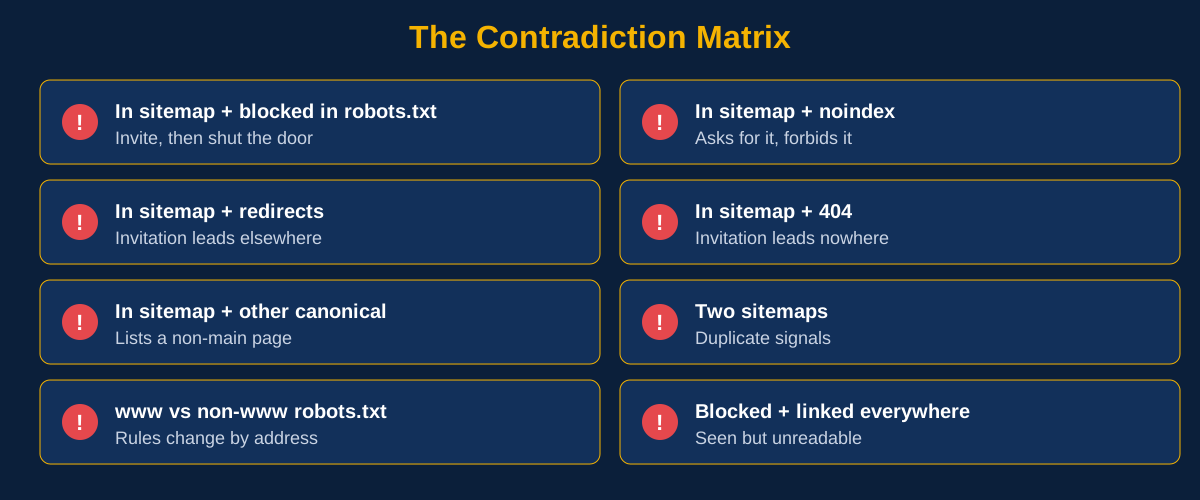
We check each URL against both files and related page signals. The matrix below is real text so you can identify the conflict and the next step.
| What your site says | What Google sees | What RankUp Metrics does |
|---|---|---|
| URL in sitemap, blocked in robots.txt | You invite Google in, then shut the door. | Decide the page’s purpose, then unblock it or remove it from the sitemap. |
| URL in sitemap, marked noindex | You ask Google to index the URL and forbid indexing at the same time. | Remove it from the sitemap or remove noindex if the page should be indexed. |
| URL in sitemap, redirects elsewhere | The invitation leads to a different page. | Replace it with the final destination URL. |
| URL in sitemap, returns 404 | The invitation leads nowhere. | Remove it and fix internal links that point to it. |
| URL in sitemap, canonical points elsewhere | You list a page you identify as not the main version. | List only the canonical version. |
| Blocked in robots.txt, linked across the site | Google can see links to a URL but cannot crawl it to read page directives. | Allow crawling and use noindex when appropriate, or accept the crawl exclusion. |
| Two sitemaps from two plugins | Duplicate or conflicting URL lists may be submitted. | Keep one sitemap system and disable the competing one. |
| Different robots.txt on www and non-www | Rules can change depending on the address. | Redirect to one preferred version so Google sees consistent rules. |
A safe starting point
What a WordPress robots.txt can look like
There is no single perfect file. A robots.txt should be short, specific and adapted to your site. This is only an example for discussion, not a file to paste blindly:
User-agent: *
Disallow: /wp-admin/
Allow: /wp-admin/admin-ajax.php
Disallow: /?s=
Disallow: /search/
Disallow: /cart/
Disallow: /checkout/
Disallow: /my-account/
Sitemap: https://www.example.com/sitemap_index.xml
Replace the example host and sitemap path with the correct preferred HTTPS URL. Store, search and account paths vary by site.
Sitemap rules we enforce
Keep your sitemap clean and useful
List only canonical URLs that return HTTP 200 and are not marked noindex.
Remove redirected, 404, duplicate, parameter and thin URLs.
Run one sitemap system at a time so WordPress core and an SEO plugin do not compete.
Split large sites into sub-sitemaps by type, such as pages, posts, products and categories.
Stay within Google’s limits of 50,000 URLs or 50 MB uncompressed per sitemap file.
Set lastmod when content actually changes, not on every plugin update.
Serve the sitemap over the preferred HTTPS host and make it reachable to Googlebot.
Declare the sitemap in robots.txt and submit it in Search Console.
“Couldn’t fetch” decoder
Why Search Console might not fetch your sitemap
We verify that the file is healthy before changing settings. A temporary Google delay can produce the same message as a real fetch failure.
Wrong or outdated URL
The submitted address no longer matches the URL served by WordPress or the SEO plugin.
Robots.txt or firewall block
A rule, security plugin or CDN setting prevents Googlebot from fetching the file.
Server error or timeout
The sitemap is too large or the server does not respond reliably.
Invalid XML
A plugin conflict, PHP warning, stray whitespace or unsupported character breaks the file.
Cache or CDN interference
A stale or incorrect cached response is served to Google.
Temporary Google delay
A valid sitemap may show the message temporarily due to Google’s own load or crawl demand.
How we work
How RankUp Metrics fixes sitemap and robots.txt issues
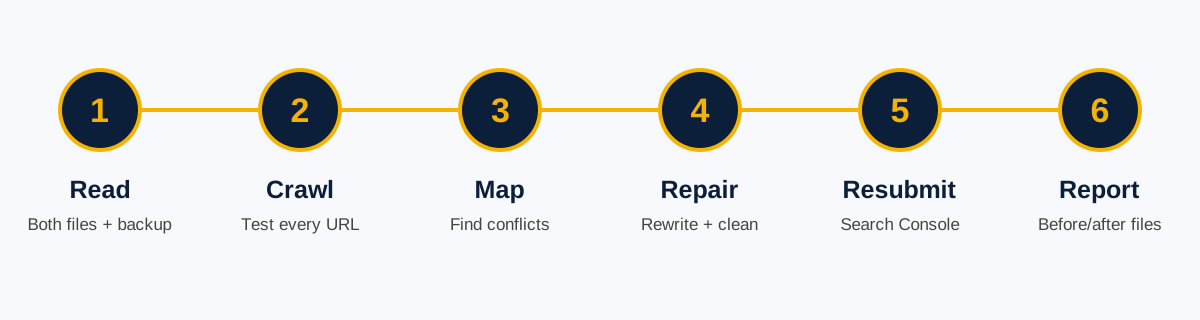
1. Fetch and read
We load robots.txt on your domain variants and fetch your sitemap files, then back up the current versions.
2. Crawl the list
We test sitemap URLs for status codes, redirects, noindex, canonicals and robots.txt access.
3. Map conflicts
We group the URLs so you can see exactly where your site signals disagree.
4. Repair
We adjust robots.txt, configure one sitemap system, remove bad URLs and align www and HTTPS settings.
5. Resubmit and monitor
We submit the sitemap in Search Console, test priority URLs and recheck the report.
6. Report
You receive the final files, change list and before-and-after documentation.
One-time packages
WordPress sitemap and robots.txt fix pricing
Choose the package based on URL count and the type of conflict. Large, multilingual and store setups may need a custom scope.
Basic
$35
One broken file
- Robots.txt audit and rewrite
- Sitemap audit and fix
- URLs tested against the matrix: Up to 25
- Remove duplicate sitemaps
- Fix noindex, canonical and redirect conflicts
- Firewall / CDN / www-HTTPS check
- Search Console submission and recheck
- Report: Short
- Support after delivery: 3 days
- Delivery: 24 hours
Standard
$80
Couldn’t fetch plus blocked URLs
- Robots.txt audit and rewrite
- Sitemap audit and fix
- URLs tested against the matrix: Up to 150
- Remove duplicate sitemaps
- Fix noindex, canonical and redirect conflicts
- Firewall / CDN / www-HTTPS check
- Search Console submission and recheck
- Report: Detailed
- Support after delivery: 7 days
- Delivery: 48 hours
Premium
$150
Large site, store or migration
- Robots.txt audit and rewrite
- Sitemap audit and fix
- URLs tested against the matrix: Up to 1,000
- Remove duplicate sitemaps
- Fix noindex, canonical and redirect conflicts
- Firewall / CDN / www-HTTPS check
- Search Console submission and recheck
- Report: Detailed + action plan
- Support after delivery: 14 days
- Delivery: 4 days
Very large site or multilingual setup? Get a custom quote →
Before and after
From conflicting files to a checked submission
Before: signals conflict
Search Console may show “Couldn’t fetch,” or sitemap URLs may be blocked, redirected or marked noindex.
After: files are verified
The sitemap and robots.txt are checked together, affected URLs are corrected and the sitemap is resubmitted for Google to fetch.
Illustrative workflow, not a client screenshot or verified case study. Google controls when reports update and whether URLs are indexed.
Illustrative scenario: A store’s sitemap has a fetch warning and some product URLs are blocked by an old staging rule. The rule and duplicate sitemap are reviewed, invalid URLs are removed and the sitemap is resubmitted. Replace this example with dated Search Console screenshots and verified client results before presenting it as a case study.
Frequently asked questions
Sitemap and robots.txt questions
Why does Search Console say “Couldn’t fetch” for my sitemap?
Common causes are a wrong sitemap URL, a robots.txt or firewall block, a server error or timeout, or a plugin producing invalid XML. A valid sitemap can also show the message temporarily, so we verify the file before changing anything.
Does robots.txt stop a page from being indexed?
No. robots.txt controls crawling, not indexing. A blocked URL can still appear in Google if other pages link to it. To keep a page out of Google, use a noindex tag and allow Google to crawl the page so it can see that tag.
Which pages belong in my sitemap?
Only pages you want indexed: canonical URLs that return HTTP 200 and have no noindex tag. Redirected, noindexed, 404 and duplicate URLs should be left out.
Do I need both the WordPress default sitemap and an SEO plugin sitemap?
Usually not. Running two systems can create duplicate or conflicting lists. We identify which system should be active and disable the other when appropriate.
Should I block /wp-content/ or /wp-includes/ in robots.txt?
Generally, no. Blocking these directories can prevent Google from loading CSS, JavaScript and images needed to render and understand pages.
How long until Google reads the fixed files?
Google may recrawl a corrected robots.txt quickly, but sitemap reports and indexing changes can take days or weeks. Timing depends on Google’s crawl activity.
Why does robots.txt look different on www and non-www?
If both hosts respond without redirecting, each can serve a different file. Redirecting to one preferred host helps keep the rules consistent.
Will you edit my live robots.txt without a backup?
No. We save the current file first, make changes carefully and test the result before and after.
Can you guarantee indexing or rankings?
No. Google decides what to crawl and index. We identify and fix the technical conflicts we can verify, then report what was changed.
Do you need access to my website?
WordPress admin access is usually enough. Server, firewall or CDN issues may require temporary hosting or Cloudflare access. Remove access when the work is finished.
Free sitemap check
Give Google a clean map and open doors.
We check your sitemap and robots.txt together, fix verified conflicts and document every change.